

Place your first order
Review and approve a project, then complete shipping, payment, and checkout.
This guide covers the final review and checkout flow. If you have not imported and configured a project yet, begin with the Quickstart.
1. Make the project ready to order
Before ordering:
- Open the Parts tab and confirm every fitted BOM line has an approved part and valid sourcing.
- Open the Board tab and verify the specifications CircuitHub should use for manufacturing.
- Use the board viewer to inspect the imported outline, layers, holes, and component placements.
- Select the required quantity and an available ship date.
Changes made in the Board tab override values detected from your design files.
For more detail, see BOM reconciliation and the Board overview.
2. Proceed to order
When the project has a valid quote and no blocking issues, select Proceed to order.
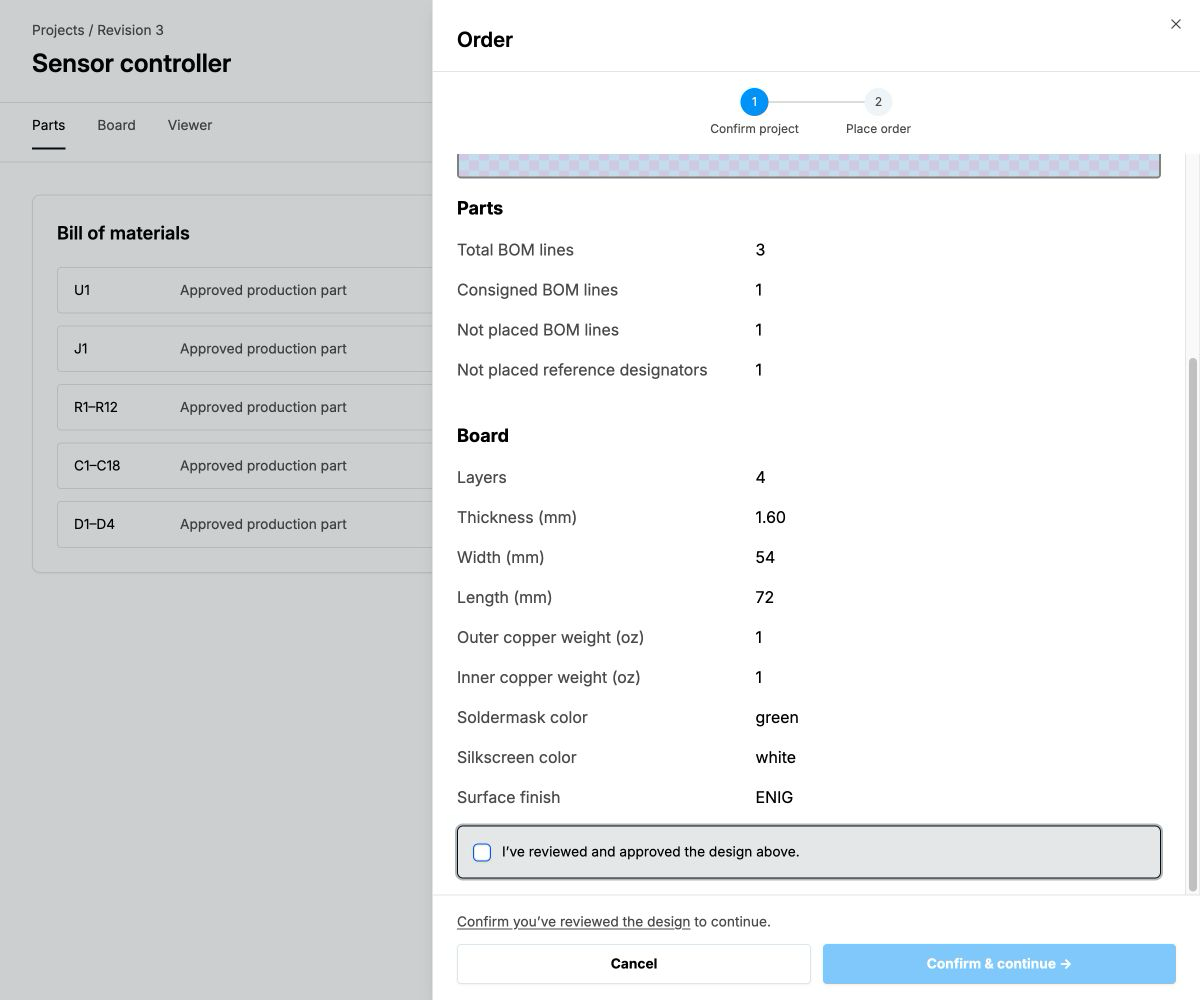
The first checkout step is Confirm project. Review the board preview, BOM summary, and board specifications. You must select I’ve reviewed and approved the design above, then select Confirm & continue.
3. Complete checkout
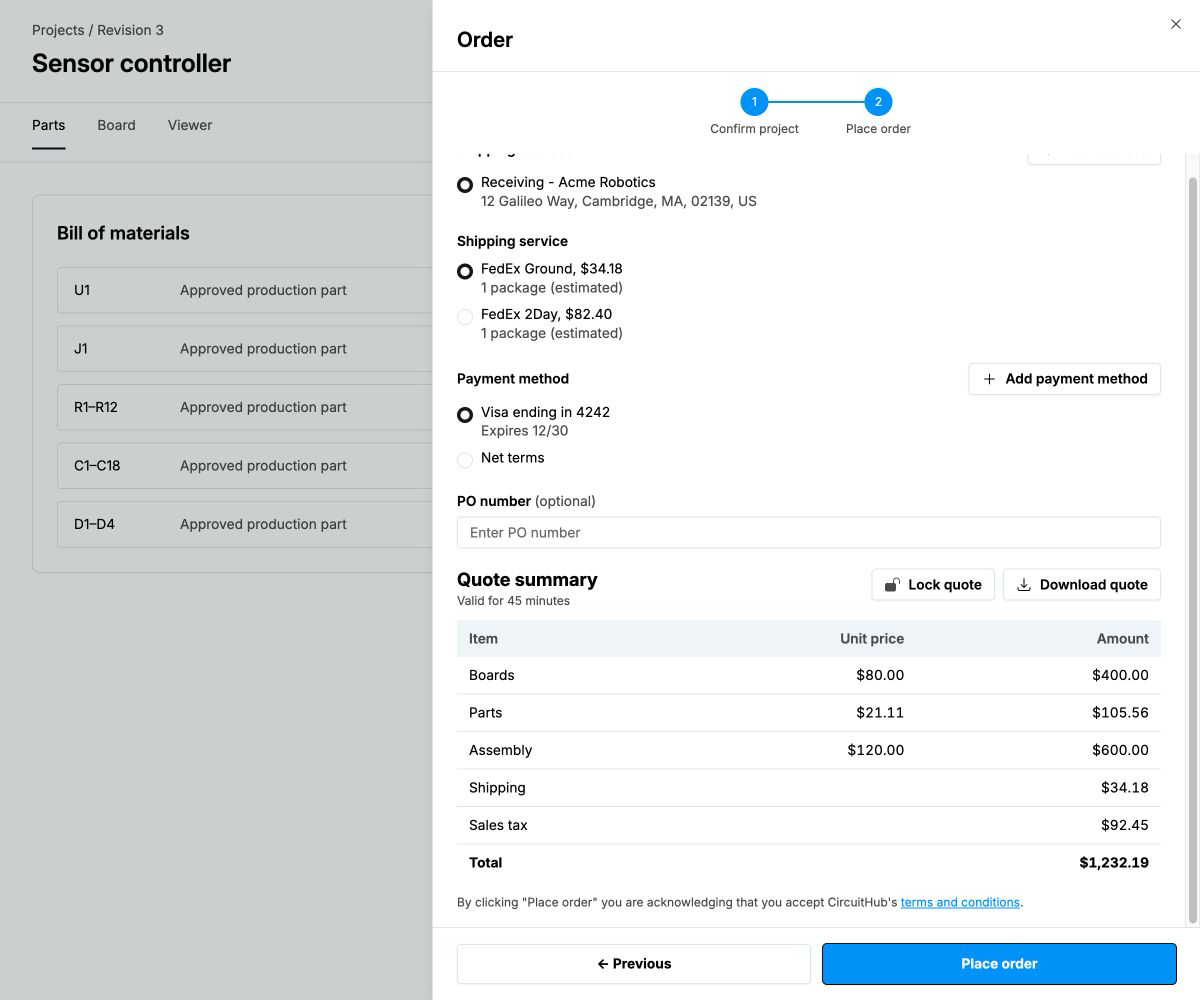
On the Place order step:
- Select or add a shipping address.
- Select a shipping service.
- Select or add a payment method.
- Optionally enter a purchase order number.
- Review the quote summary, shipping, taxes, and total.
- Optionally lock or download the quote.
- Select Place order.
CircuitHub sends a confirmation email after the order is placed. You can then use the order page to follow production and respond to manufacturing questions.