

Handling out-of-stock or unavailable parts on CircuitHub
Resolve an unavailable BOM part by choosing another approved part, adding a purchasing source, or consigning the part.
When an approved part has insufficient stock or is unavailable, open the project’s Parts tab and select the affected BOM line. You can resolve the line in three ways.
Approve another part
Use Find part to search the catalog for the intended manufacturer part number or a compatible substitute. If the required part is not in the catalog, select Add custom part.
See Approving a part with no suggestions for the complete workflow.
Add a purchasing source
If you know a supplier that can provide the approved part, select Edit sourcing. Under Purchase, review the existing sources and select Add a source.
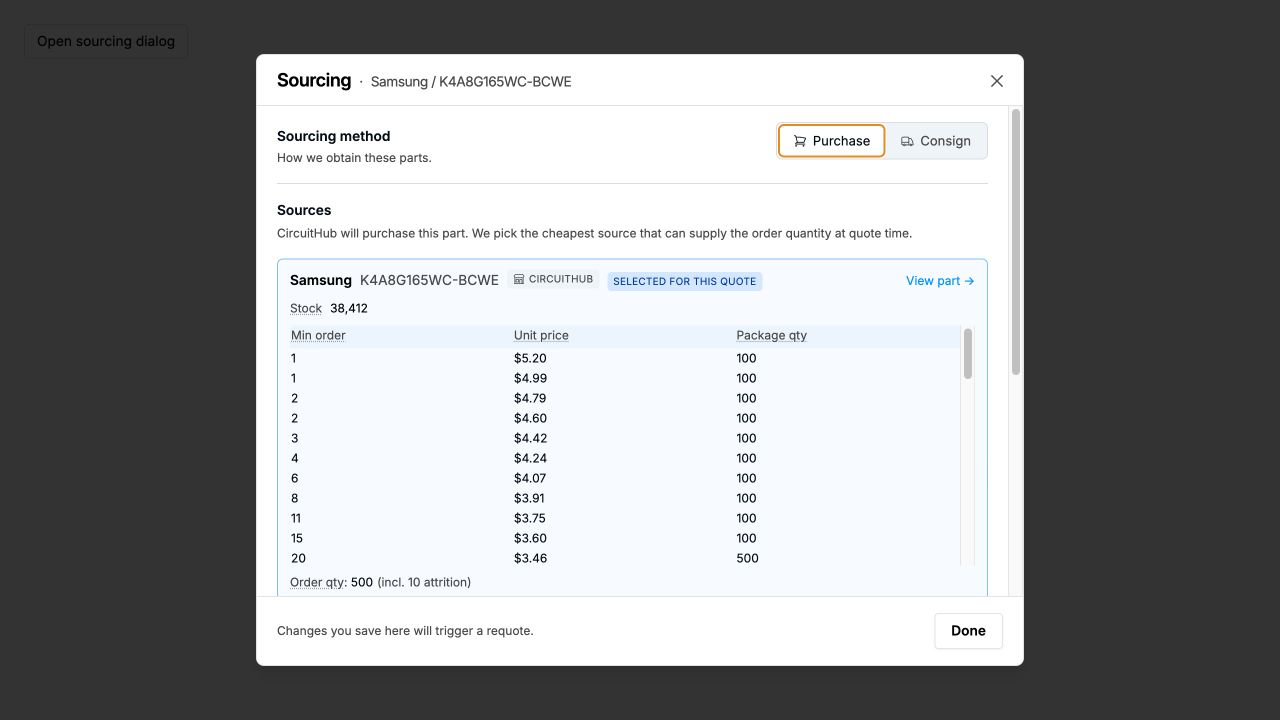
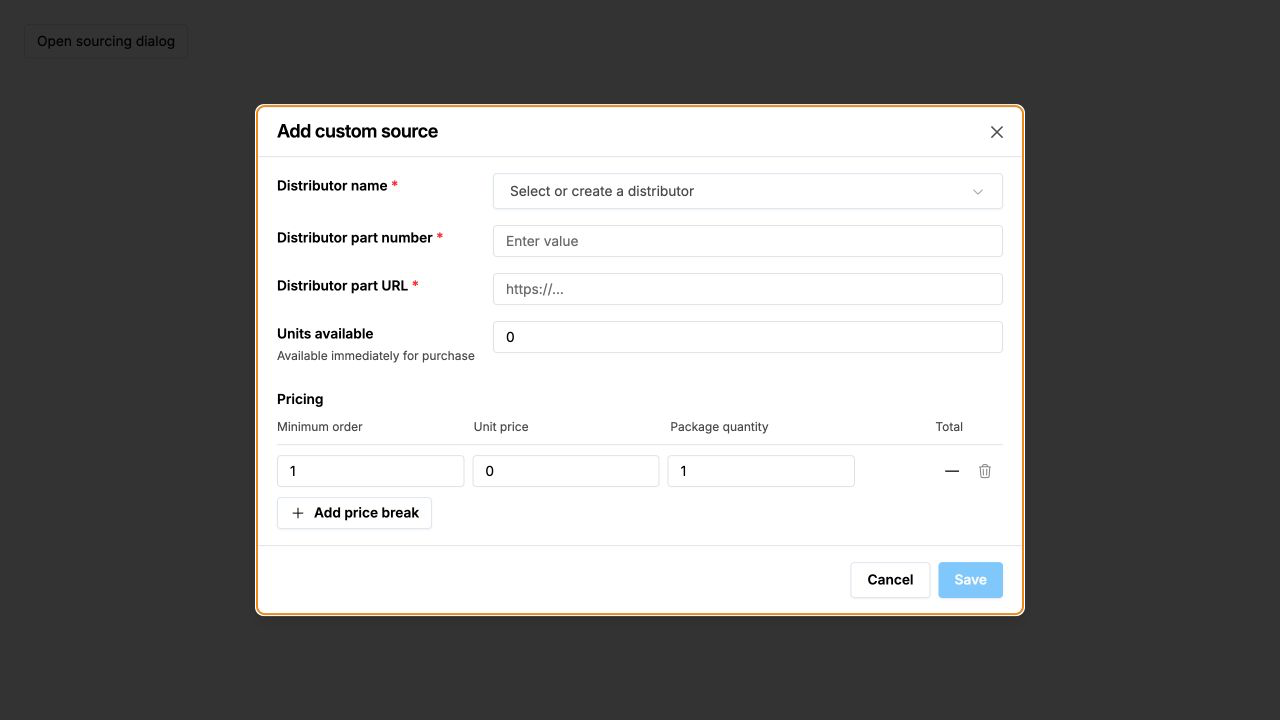
Provide the distributor details, available quantity, and price breaks, then save the source. Saving triggers a requote using the updated sourcing information.
For registered supplier pricing, see Supplying your registered pricing.
Consign the part
If you already own the parts and want to supply them for the build, open Edit sourcing, switch the sourcing method to Consign, and select Save changes.
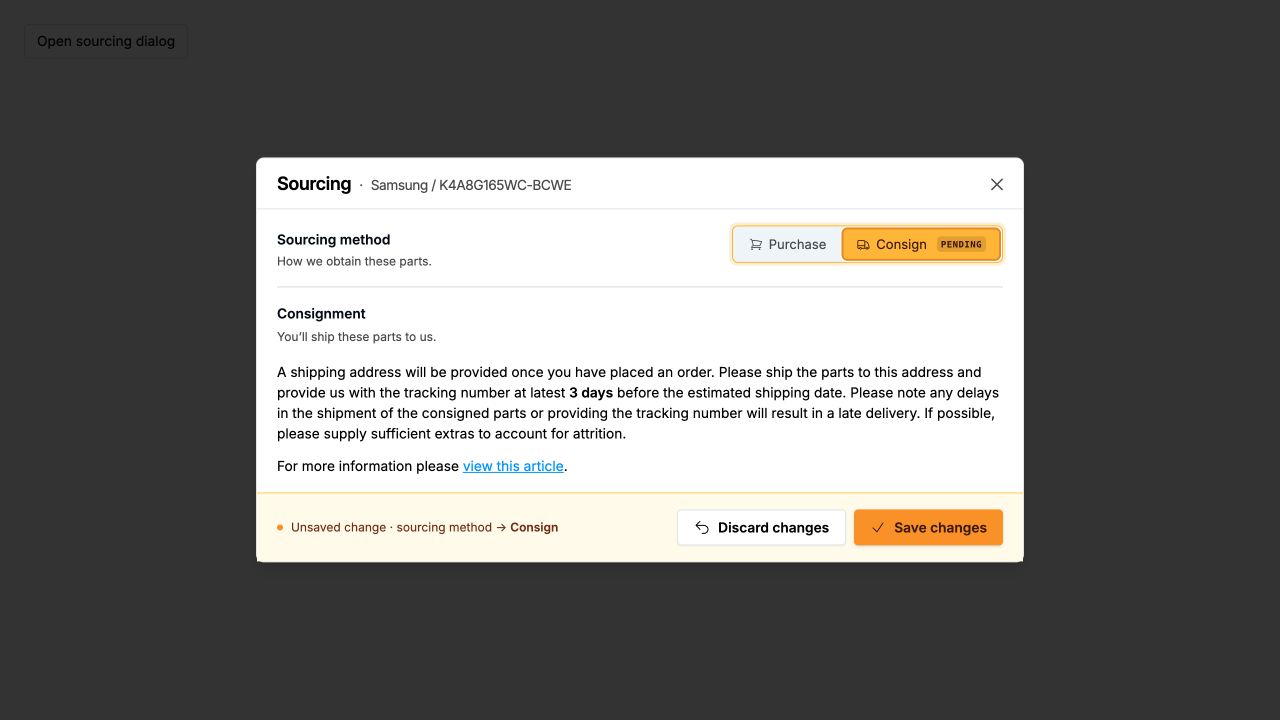
After you place the order, CircuitHub provides the shipping address and asks you to provide tracking information for the consigned parts.