

Settings page
How to use the CircuitHub settings page to manage your user profile and workspace settings.
How to use the settings page
The new settings page in CircuitHub helps you manage both your user profile and your workspaces in one place.
The quickest and easiest way to access your settings page is by clicking the top-level button in the navigation bar.
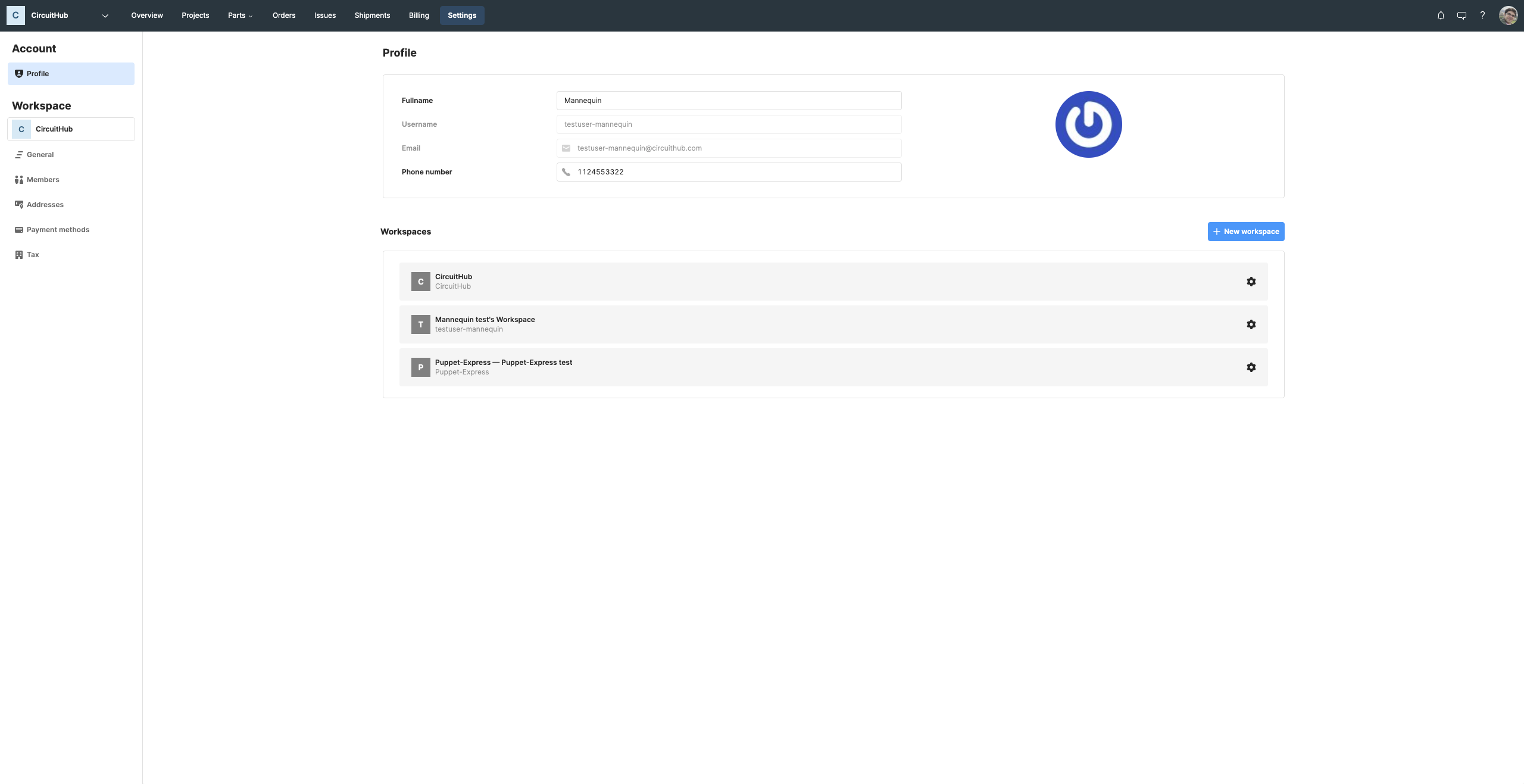
Profile settings
These are specific to you as a CircuitHub user.
To access:
- Go to the top right of any page
- Click your profile icon, then click Settings
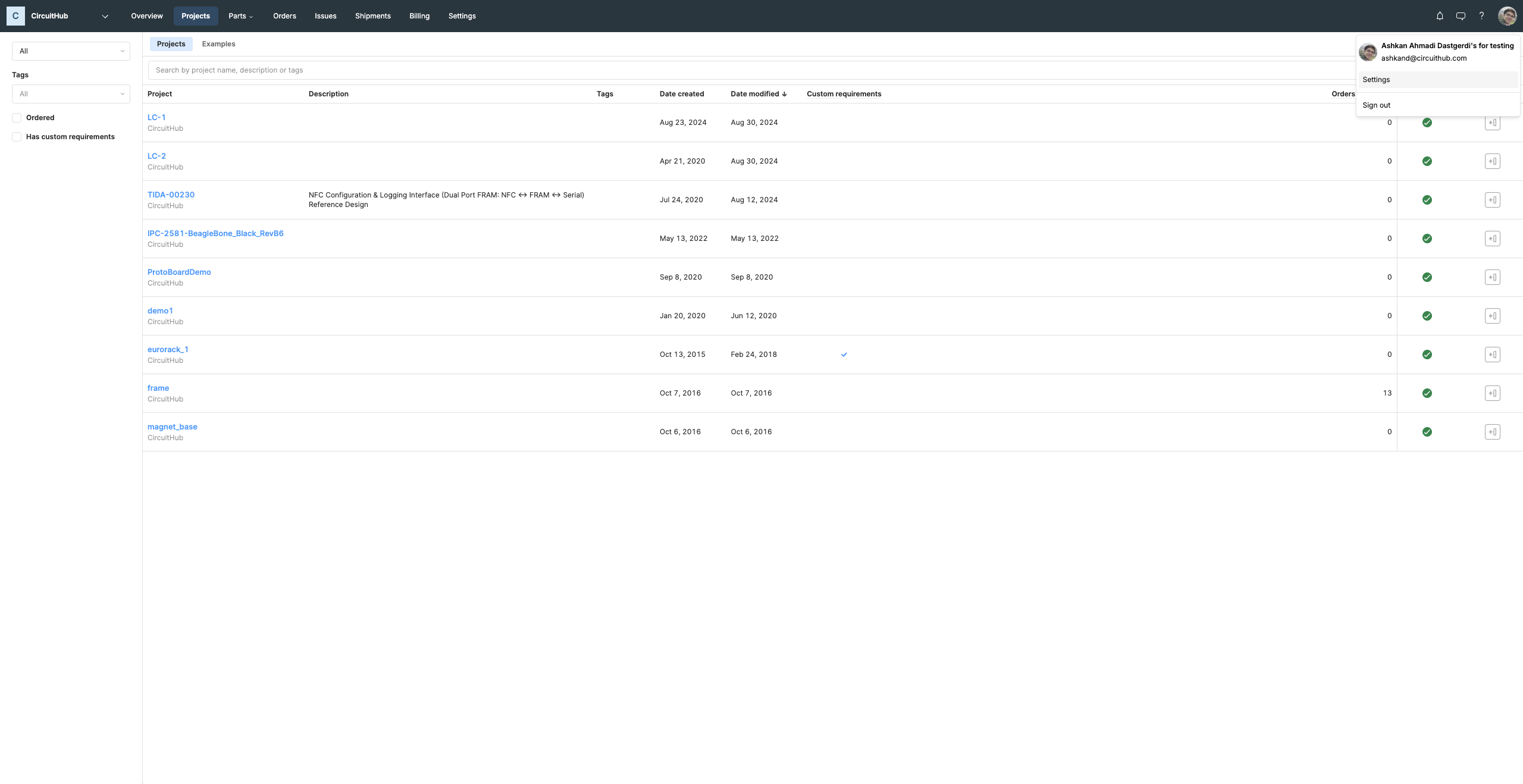
You'll be able to:
- View your full name, username, email, and phone number
- Change your full name and phone number
- (Coming soon) Edit your email

No matter which workspace you're in, your profile settings will stay the same.
Workspace settings
Workspaces are how you collaborate with others on CircuitHub. Any workspace you're a member of will appear in the workspace selector at the top left of the navigation bar.
To access workspace settings:
- Go to the top left of any page
- Click your workspaces icon, then click Settings
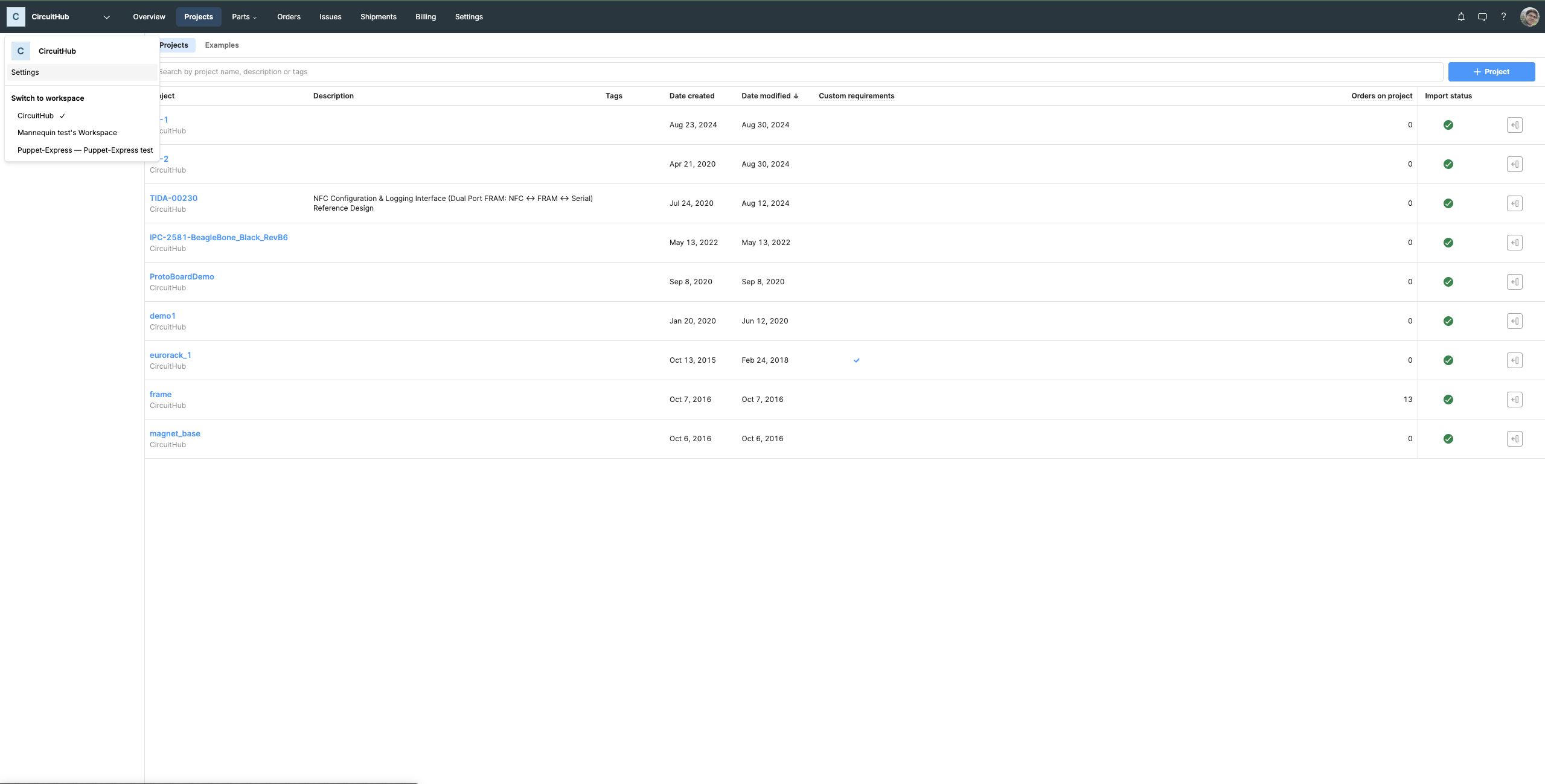
This will take you to the settings for the currently selected workspace.
Workspace settings include:
General
- View and edit your workspace name, email, and phone number
- Note: The workspace URL cannot be changed
Members
- Add or remove members
- Filter members by username
- To add someone, ask for their CircuitHub username and enter it directly (no spaces or formatting)
- Every CircuitHub user can get their username by going to their profile settings page and copying the field Username
Addresses
- Add, edit, or delete shipping addresses
- (Coming soon) Add billing addresses directly here
Payment methods
- View all saved credit cards
- See if you have wire transfer options or payment terms enabled
Tax certificates
- Upload or view existing tax exemption certificates